User Interface Overview
Gaea's interface is built around a simple loop: build your terrain in the graph, preview it in the viewport, and refine it in the property editor.

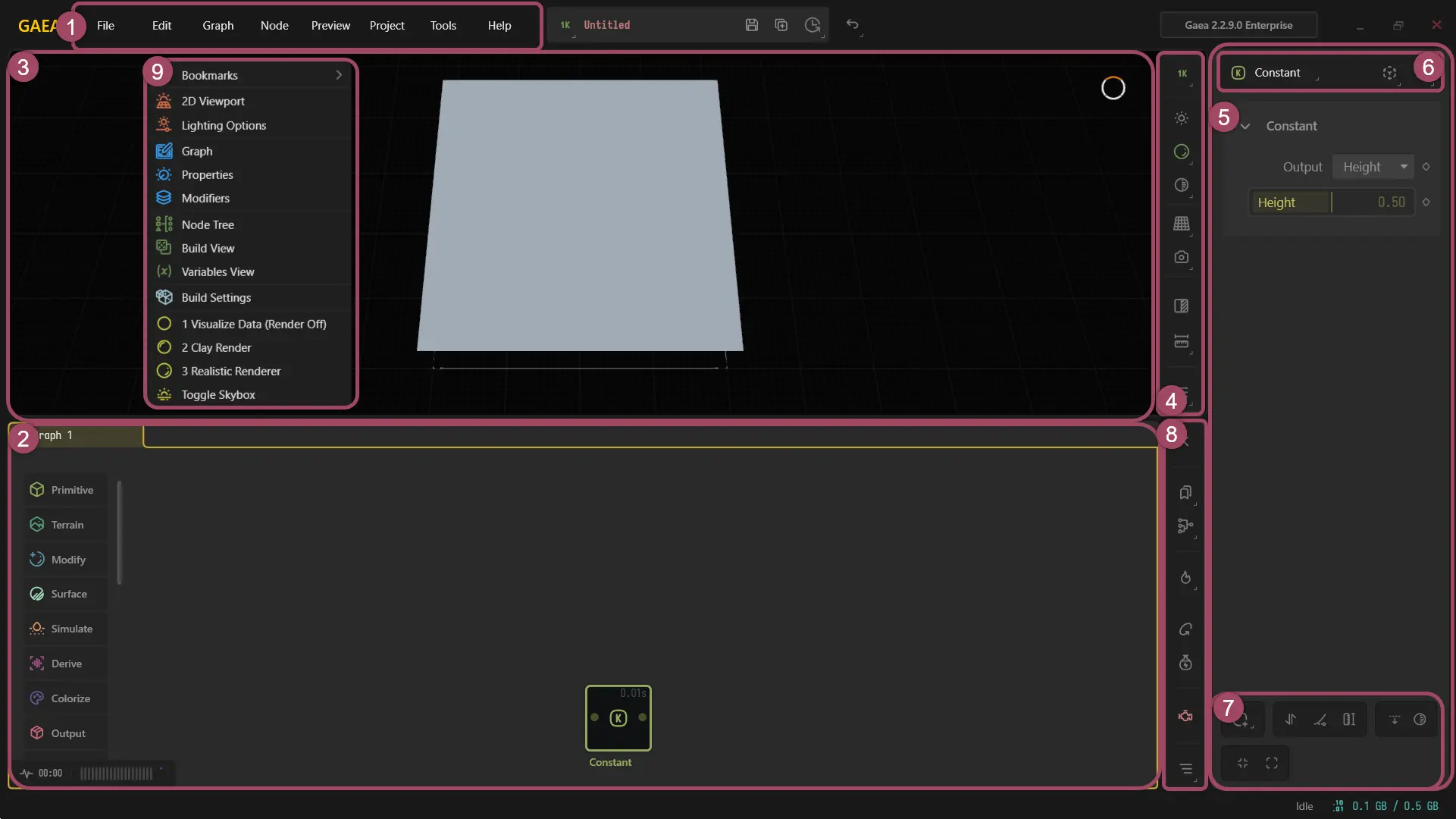
Use this numbered reference to identify the main regions shown in the interface map above. Click an area name to jump to its section.
| # | Area | Purpose |
|---|---|---|
| 1 | Main Menu | Access project, graph, preview, tools, and help commands. |
| 2 | Infinity Graph | Build terrain logic by connecting nodes into a flow. |
| 3 | Viewport | Preview terrain shape, scale, and detail in 3D or 2D. |
| 4 | Viewport Toolbar | Control preview resolution, lighting, render style, and viewport tools. |
| 5 | Property Editor | Adjust settings for the currently selected node. |
| 6 | Property Editor Toolbar | Perform node-specific actions such as replace, revert, and gizmo access. |
| 7 | Modifier Stack | Apply lightweight post-process refinements to a node's output. |
| 8 | Data View | Inspect project structure, terrain organization, and graph filters. |
| 9 | Lazy Menu | Configurable fast-access menu. |
Infinity Graph
At the center of Gaea is the Infinity Graph - a node-based workspace where you create terrain logic by placing nodes and connecting them into a flow. The graph is designed to scale from small experiments to large production graphs without forcing a rigid structure.
Viewport
The Viewport is your primary preview area. It supports both 3D viewing (with an optional 2D viewport) so you can evaluate terrain shape, scale, and detail while you work.
The Viewport Toolbar provides quick controls for:
- Preview resolution (from 512 up to 4096)
- Lighting and atmosphere (sun/light/atmosphere controls)
- Render styles (for example realistic, clay, or data-visualization styles)
- Viewport toggles and tools, including showing/hiding the 2D viewport and measurement/picking tools
The viewport can be used embedded in the main layout or as a floating window. Navigation includes Orbit, Free/WASD, and Orthographic modes, along with controls for common viewport elements (grid/bounds/compass) and camera save/load.
Property Editor
When you select a node, its settings appear in the Properties panel (right side). Changes are applied immediately and reflected in the viewport, supporting rapid iteration.
Properties may include:
- Numeric values and sliders
- Toggles and dropdowns
- Color controls
- File pickers and related inputs
A Property Editor Toolbar provides node-focused actions such as replacing the selected node with a related one, managing state (revert/reset/save state), and enabling gizmos for nodes that support viewport manipulators.
Modifiers
Gaea also supports a Modifier Stack, which lets you apply lightweight, post-process adjustments to a node's output. Modifiers are intended for quick refinements without having to rebuild or restructure large parts of your graph.
Data View
On the right side of the Graph, the Data View offers tabs for inspecting and navigating project information. The Terrain view includes a node tree organized by Tabs → Groups → Nodes, plus filters that help you locate specific nodes quickly (by type, export-marked, heavy nodes, error nodes, and more).
Menus and Fast Access
Gaea's Main Menu follows standard application organization (File, Edit, Graph, Node, Preview, Project, Tools, Help), providing access to project management, graph tools, baking/build/export actions, and diagnostics.
For faster navigation, the Lazy Menu (F1) provides a configurable, keyboard-first hub for jumping to key UI areas and tools (such as Graph, Viewport, Properties, Modifiers, Node Tree, Variables, and Build controls).
 using AngryMonkey